COPY CODE SNIPPET

All contents

Sunday, 22 October 2017

8 Premium Android Apps to Get Unlimited VPN for FREE

What is a VPN?

The full form of VPN is Virtual Private Network. In simple words, it means a virtual network in which the user remains anonymous and remains untraceable from the website trackers.
Using VPN, you can change your ip address to any other ip address.
By default, an ip address can be used to determine the location of the user he is browsing from.
Hence, the ability to change ip address enables you to change your location to virtually any place in the world.
That is why this is called Virtual Private Network. You may be browsing from your home but you can choose any location around the world as your browsing location.
It has many important uses due to it’s advantages.
Features and Advantages of using VPN:
Hides your original IP Address and Changes IP Address so that you can surf anonymously.
Unblocks any websites blocked by your ISP, Administrators or by law or court orders.
Protects your identity over a Wi-Fi Network so that hackers cannot get into your private files.
Protects you from visiting sites having Malwares.
Helps to browse Google Play without country restrictions to download unavailable apps in your country.
Tricks to Get Unlimited Free VPN:
Well, before I jump into the main article, let me clarify this, there are two ways to enjoy unlimited free vpn, the ethical and the unethical ways.
The ethical ways includes services that are provided for free and will remain free forever.
The unethical ways are those whose services are by default not free but have been modified and unlocked so that the premium services can be used without paying for them.
We are sharing both the ways for you here, it is entirely your decision which to choose and to stick on.
We strongly recommend using the ethical ones, and also suggest you to buy their premium services to support them.
100% Free to Use VPN Apps with Limited Features:
Let’s move on to the 100% Free VPN Services first.
Use Super:
This VPN app is a simple app with minimum modifications or settings. Just install and run. Each session is of 60 minutes after that you have to manually renew the session for free with just a click of a button.
CloudVPN is yet another app just like SuperVPN that you can use for accessing Free and Unlimited VPN Service. It has a one click connection button to connect to their servers.
The main advantage of this VPN app over other free to use Apps is that it lets you choose the server of your choice, while others are just click to connect where you only get connected to the server they provide. FlashVPN servers are available on USA, England and Japan to give you more privacy.
This is the most functional of all the Free VPN Apps available on Play Store. You can choose from 190 countries to fake your location. At the time of writing this post this app has got 10 million downloads in the Play Store with 4.3 out of 5 ratings.

Premium Unlocked VPN Apps:

The apps given above are our handpicked Free VPN app suggestions to fake your location, mask and change your ip address all for 100% Free.
But let me tell you, these apps lack the Premium Features which are only available to the Paid versions of the apps.
Hence, we present you some exclusive premium unlocked apps which can be used to get unlimited free vpn. Check these out.
HideMyIP is the best VPN Solution for all Android Users due to it’s fastest servers. Their subcriptions are a bit difficult to afford, but here we are sharing with you HideMyIP Premium Unlocked APK through which you can access to the HideMyIP Premium servers for free.
Hotspot Shield Android App is a brilliant app for using VPN Services. By default it is a paid app. But we are sharing a modded Elite Version Apk of Hotspot Shield that you can download and enjoy Unlimited free VPN.
Hotspot Shield
HideNinja VPN is protected with 256-bit AES encryption algorithm making it one of the most secure vpn apps you can rely on. HideNinja is normally not available for free, but, as usual, we have HIdeNinja Unlocked version of the Premium Elite. So enjoy full protection.
DroidVPN is another popular app for Android Users specially because it gives daily free access to its Services with a limit of 100 MB Per Day. But don’t worry, we are sharing with you a premium DroidVPN apk that you can use for unlimited acess to the free servers. Note: The paid servers are not available.
YOU MAY ALSO LIKE: LIFI, an optical wireless network, is 100 times faster than WIFI
Conclusion:
That’s all about VPN, both paid and free. But if you ask me what service I recommend you to go for then I will say buy a premium service.
Among all other VPN services, you can check out the most popular and affordable HideMyIP VPN and it will satisfy all your basic needs. Subscriptions start from as low as 7$ per month.

Saturday, 21 October 2017

How To Install Android Apps on Windows 10 Mobile


If your bored of using Windows phone then you can try this tutorial. In this article we will let  you know “How To Install Android Apps On Windows 10 Mobile”.
!!! Run Android Apps On Windows 10 Mobile !!!
Step 1: Download wconnect and Android SDK ADB tool.
Step 2: Now unzip SDK, connect tool and install IpOverUsbInstaller.msi and vcredist_x86.exe. Make sure ADB commands are working.
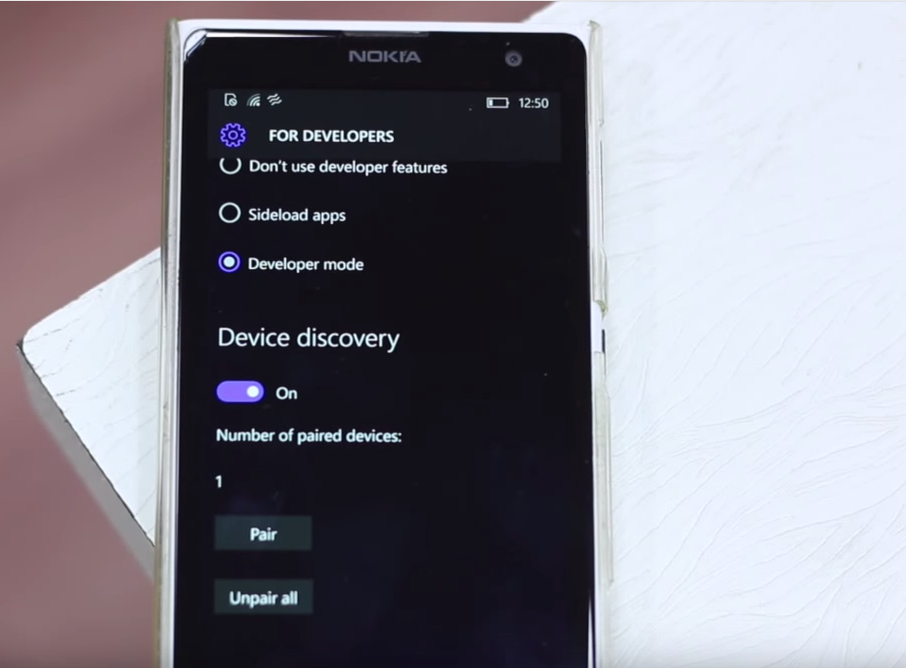
Step 3: Open Windows 10 phone Settings > Update and security > Developers. Checkdeveloper mode and  turn on Device Discovery.
Step 4: Open command window on wconnect folder. Now you need to connect your phone and you can do it in two ways.
1.If you connect via USB, type wconnect.exe usb and hit enter   2.If you connect via Wi-Fi, type wconnect.exe192.168.xxx.xxx (replace 192.168.xxx.xxx with your local network IP address)
Once done enter the paring code
Step 5: Now move to extracted adb folder and open an elevated command prompt.
Step 6: Type adb device to check if you device is connected.
Step 7: Now paste you APK file that you want to install on the same folder (adb folder) and type adb install APK_FILE_NAME_HERE.apk
After following the above steps wait for couple of minutes so that the android app will install on your Windows 10 Mobile.
Minimum requirements:
Latest build of Windows 10 for Desktop / PC and Windows 10 Mobile Preview.
Supported devices:
  • Nokia Lumia 920
  • Nokia Lumia 925
  • Nokia Lumia 929
  • Nokia Lumia 830
  • Nokia Lumia 930
  • Nokia Lumia 1020
  • Nokia Lumia 1520
  • Nokia Lumia 635
  • Nokia Lumia 730
  • Nokia Lumia 820
  • Nokia Lumia 535
  • Nokia Lumia 928

How to Track an Email Address

> Google Chrome (or a good and fast browser)
> Fast internet connection
> Access to a Google Account on which you received the mail.
Now follow the steps below to track an email address.
  • Open Google Chrome.
  • Click here to visit the website, which will help you to track the email address.
  • Open a new tab, and open your mail.
  • Now find the mail which you want to track and open it.
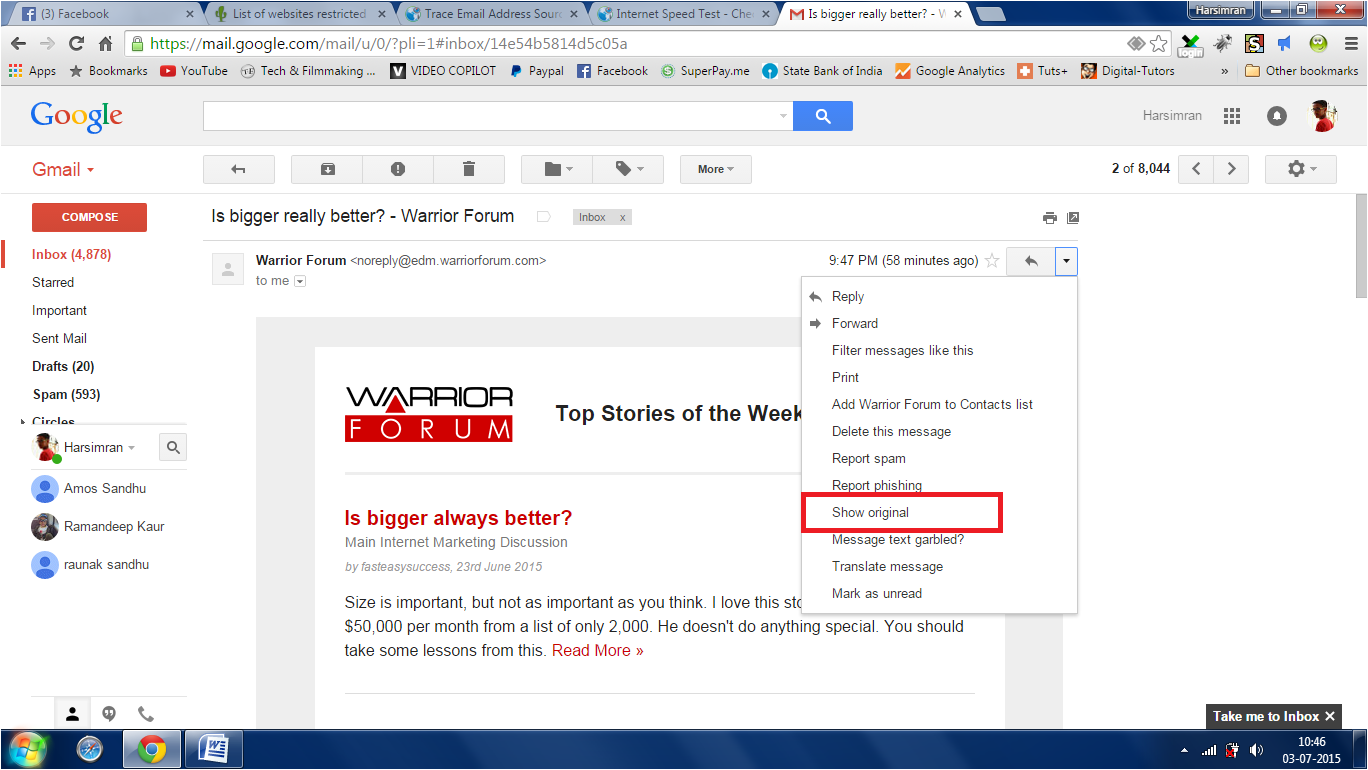
  • Now click on the down arrow, near the reply button and click on Show Original.
  • Now Copy all text which you see on this tab.
  • Now go back to the previous tab, where you opened this link.
  • Scroll down and find the empty text box.
  • Paste the copied code here and click on Get Source.
  • Now wait for a few seconds to let the text upload.
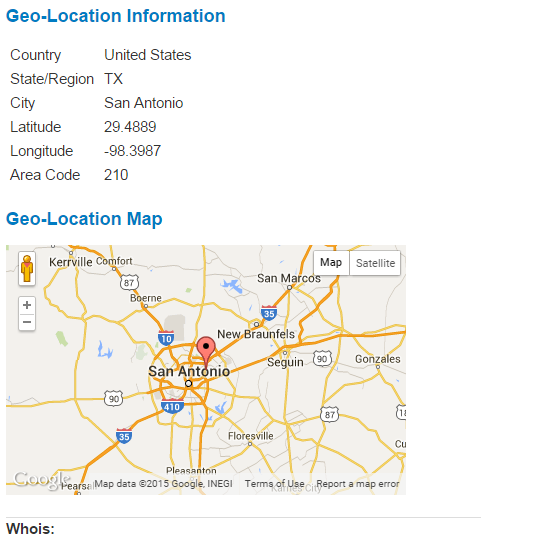
  • Scroll down a lot more and you would be able to see a map with the location of the Sender.
You successfully traced an email address legally. Hope you enjoyed this article. Don’t forget to share this article with friends.

Free Unlimited Calling WorldWide | How to make Prank Calls Trick: Flipcall

Hello Guys!! I am back..Today I am going to share a Amazing Trick that is How To FREE Unlimited Calling Trick World Wide. This is a Working and Genuine Trick , Personally tested by me and by using this you can Make Prank calls also :D..
So here we will use a newly launched android app called Flipcall, which is gives Rs 60 bonus credits on Sign up. But here we will provide you a trick by which you all can call unlimited :) so follow the steps:-
Follow the Instructions to use Flipcall:-
1). First of all download Flipcall app from playstore or Click Here
2). Now Signup using your mobile number and you will get $1(Rs 61) for trial purposes..
Note: It will not ask for verification :D. So you can prank your friends also :D ..read at the end of this tutorial how to Prank your friends..
3). Now, What you have to do is, Just make a call to any number.
4). Now you will receive a call in which you will get connected to the number you made the call.
5). Now just Enjoy the 120 minutes of free calling (for India). To get unlimited minutes follow the below steps..
To get Unlimited minutes:-
1). Now just empty your free credits by calling and when our balance becomes Rs.0 ..Go to Settings>Apps Manager>Flipcall and Clear the data.
2). Now signup again and enjoy another $1(Rs 60) or 120 minutes(for India) :D . So you call unlimited anywhere around the world for free :D $$$$$
Now How to Prank Anyone by Using Flipcall:-
1). You just Simply Signup to Flipcall by using your friend’s or enemy’s number.. As I said above it will not ask for verification :D..

2). Now make a call to your number and now you will get automatically call from your friend’s number :D
Now your friends will be shocked :D. Prank you friends easily..
Note:- Its only for educational purposes. I am not responsible any harm done by you ..

How To Crack a BIOS Password

Desktop :
  •     Power off the computer and make sure that it is unplugged.
  •     Open up your computer case. You need physical access to the motherboard to complete this procedure.
  •     Find a circular, (mostly) silver metallic object on the motherboard. This is the CMOS battery.
  •     CAREFULLY remove the CMOS battery, avoid touching it with your fingers, and leave it out for about 700 seconds. This will flush the CMOS memory which stores the BIOS password and all other configuration. (See Warnings)
  • Set the battery back into place and power on the computer.
  • The computer should then warn you that the CMOS configuration could not be found. You can either reconfigure it yourself or restore defaults. Restoring the default configuration should be fine.
  • You will notice that the BIOS password has been cleared and you can boot without it. You may reset the BIOS password to something else by going into the BIOS configuration and setting a new User Password (The Supervisor Password controls access to the BIOS, NOT the computer!)

Old Laptop :
  • Remember that laptops can be trickier, especially if it’s a newer model. If it has a security chip on the motherboard forget about it. You either have to physically remove the chip or contact the mfg for the “master” password. If you can boot up off of a cd or floppy try any of these methods:    Create a Win98SE bootable media “or anything that lets you boot into MS-DOS” and boot off of it.
  •     When the A:\> prompt appears type debug and press enter.
  •     You will then only see a “-“.
  •     Type o 70 2E “include the spaces” and press Enter.
  •     Type o 71 ff “include the spaces” and press Enter.
  •     Type q and press Enter.
  •     Here are a list of common mfg backdoor passwords  :
AWARD BIOS : AWARD SW, AWARD_SW, Award SW, AWARD PW, _award, awkward, J64, j256, j262, j332, j322, 01322222, 589589, 589721, 595595, 598598, HLT, SER, SKY_FOX, aLLy, aLLY, Condo, CONCAT, TTPTHA, aPAf, HLT, KDD, ZBAAACA, ZAAADA, ZJAAADC, djonet, %øåñòü ïpîáåëîâ%, %äåâÿòü ïpîáåëîâ%
AMI BIOS : AMI, A.M.I., AMI SW, AMI_SW, BIOS, PASSWORD, HEWITT RAND, Oder
  • Other passwords you may try (for AMI/AWARD or other BIOSes) – LKWPETER, lkwpeter, BIOSTAR, biostar, BIOSSTAR, biosstar, ALFAROME, Syxz, Wodj gvs
BIOS/CMOS Password Recovery Tool is the most effective.: BIOS/CMOS Password Recovery Tool is a program that works instantly to remove any lost or forgotten BIOS/CMOS password. Simply boot your PC to DOS and execute the program, and get access to forgotten BIOS/CMOS passwords in just seconds

BIOS/CMOS Password Recovery Tool Service,

http://www.biospasswordrecovery.com/

TIPS
  • Depending on the manufacturer of your motherboard, you may be able to use what it is called a “backdoor password” to bypass the password problem. Try looking at the external links for possible passwords.
  • Remember that passwords are Case Sensitive. The last two passwords in the AWARD BIOS list are in Russian.
  • Sometimes the bios reset jumper has a “handle” and is colored a bright color to make it easy to locate. Also, look in your case near the bottom. If it is a manufactured computer then it probably came with a little sticker with the jumpers and the location of the reset jumper.
  • If you’re really stuck, the PC manufacturer can often give out a “reset password” if you can prove you are the owner. This works with Dell but they usually charge.

WARNINGS
In rare cases, the battery may be soldered into the motherboard and very difficult to remove. If this is true, you may need to find a jumper near the battery that achieves the same result. If you don’t know which jumper it is, you CAN test them all. Unplug (really unplug, not just power off) the computer, and start a methodical change in all the jumpers positions, change one, count to ten, change it back, move on the next. After completing the lot of them (on older motherboards this could take a while) plug the PS back in, and boot up. You may risk damaging your computer with this procedure if you are not careful.
Some notebooks such as IBM’s ThinkPad render useless when the BIOS password is being tried to reset.
Don’t just start pulling jumpers on the motherboard. Make sure you know where it was and in what position in case anything goes wrong put it back.
If you turn your computer on and it makes strange noises / beeps, you should contact the vendor, manufacture, or a tech guy to fix it.

How To Create Your Own Subtitle Of Any Video

How To Create Your Own Subtitle Of Any Video
Learn How To Create Your Own Subtitle Of Any Video: There are some methods out there which lets you create your own subtitle, but they are somehow lengthy and full of hassles. So, today we are going to share an easy way to create your own subtitles for your desired video. Go through the full post to know about it.
Today we are here with the method on How To Create Your Own Subtitle Of Any Video. Subtitles are the textual version of a film or television program’s dialogue that appears on screen which makes viewers easy to understand and visualize each character of a video. Generally, when you watch movies dubbed in some another language then you need subtitles. These subtitles usually come with videos, but you can create subtitle of your own choice for your favorite video. For this have a look at the complete method discussed below.
#The method is very simple and based on a simple tool that will help you create subtitle of any of your favorite video according to your wish. Just follow some simple steps to create subtitle of your own choice for any video.

Steps To Create Your Own Subtitle Of Any Video

Step 1. First of all download and install a program VideoPad in your windows. Run the program on your computer and click on Clips ->Add file.
How To Create Your Own Subtitle Of Any VideoStep 2. Now select the video file in which you want to insert subtitle of your own choice. Now video will start importing into your program.
Step 3. After it gets completely imported right-click on it and select Place on sequence there.
Step 4. Now at the Home click on subtitle and a new subtitle windows will appear.
Step 5. There you will see editing screen below, there write your favorite subtitle and apply them with according to the timings of a video.
That’s it! you are done, now the subtitles will get added to the video with each time duration set by you.
With these, you can easily add any of your favorite subtitles to any movie or video clip with this handy tool. Also, you can edit videos professionally through this tool. Hope you like our work, do share it with others too.

Trick To Create Unlimited Verified Facebook Accounts

Step 1: Firstly, go to http://m.facebook.com and then click “Create New Account”
Step 2: Fill the complete form ( use http://fakenamegenerator.com/ )
In the section of “Email or Phone” use email from http://10minutemail.com/

Step 3: 
Press “Sign up” and then visit http://10minutemail.com/ to get email verification from Facebook(Press F5 until you see it) use that CODE to activate your account.
NOTE: Your Account may get banned in a day, so do make sure that you are providing the proper identity(college, school, place of living…) and don’t forget to upload a profile picture to keep the life of your account longer.

5 Hidden Tips and Tricks for Google Chrome On Android

G oogle Chrome comes as a default browser installed on most Android phones. It is fast, responsive and comes with all the basic features...